How to Use Video Components in MageNative Mobile App?
Videos are a compelling way to captivate your audience and deliver your message effectively. With MageNative’s Video Component, you can easily integrate videos into your mobile app. Whether it’s introducing a new product, showcasing a special offer, or publishing crucial updates, Videos can prove to be a great way to elevate user interaction.
What is a Video Component?
The Video Component is MageNative’s design feature that allows you to integrate engaging videos directly into your mobile app. It maximizes user engagement by delivering a rich, clean, and vivid visual experience for showcasing products, promotions, and brand messages.
How to Set Up the Video Component on Your Mobile App
1. Drag and drop the Video Component to the preferred position on the app’s screen.
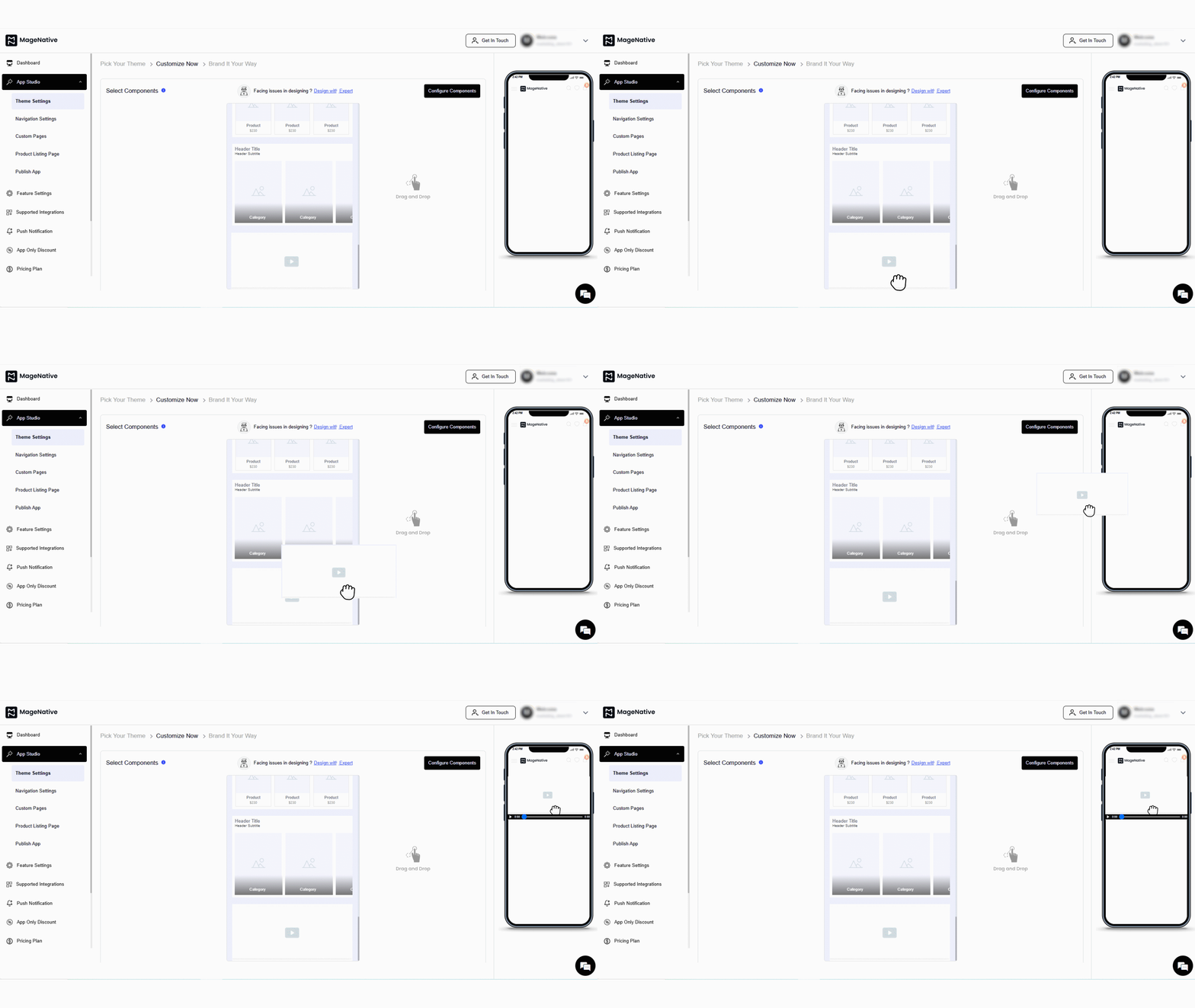
2. Next, click on the edit icon. It will open a customization window at the center of the dashboard.
3. You can configure the video component with the following options:
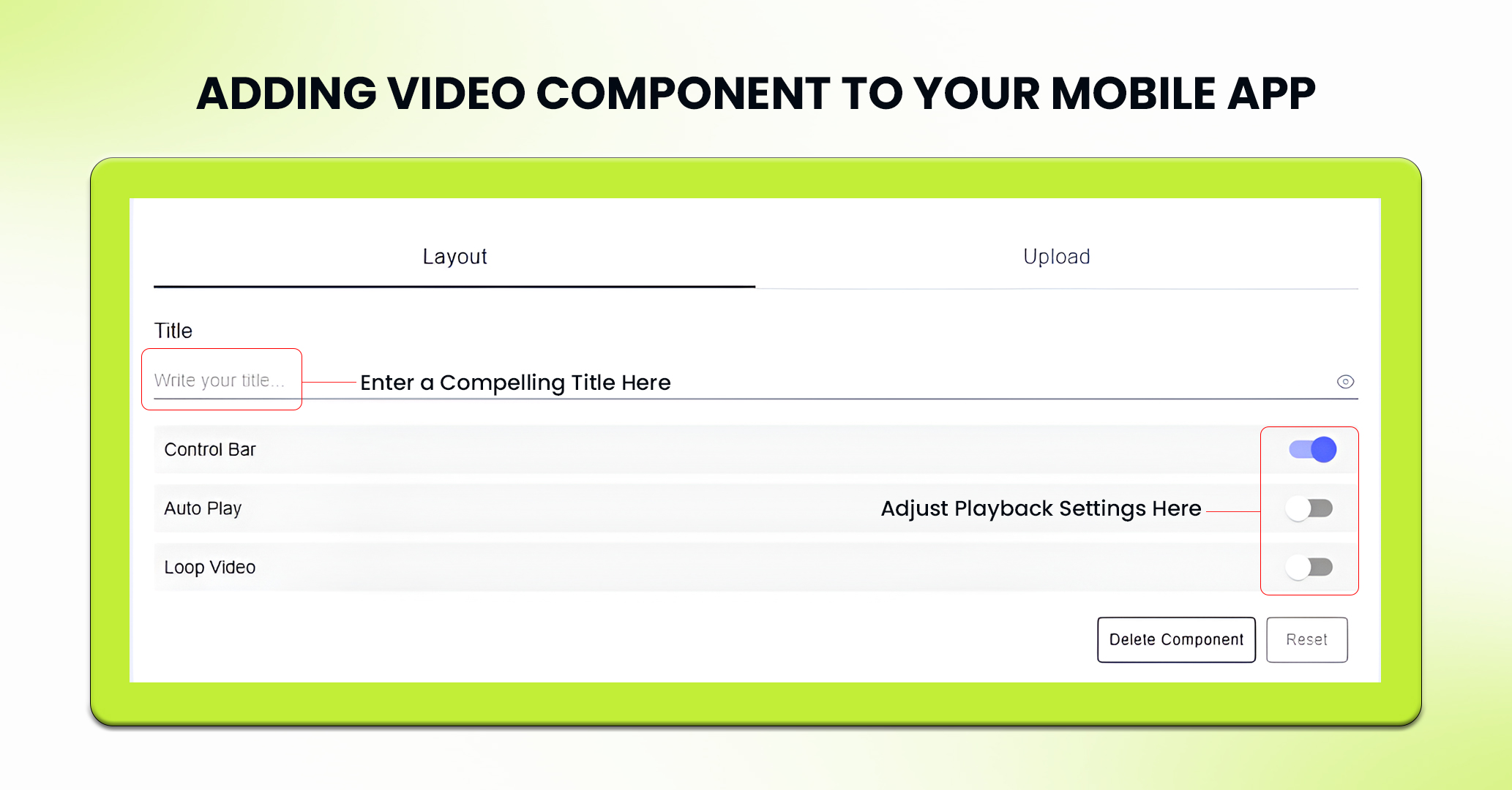
- Title: Enter a compelling title that reflects the content of your video, ensuring it grabs users’ attention.
- Playback Controls: You can enable or disable playback control bar, auto-play and loop settings, depending on the viewing experience you want to create.
4. In the upload section, you can either select to upload the video or provide a youtube video link to be displayed in the app.
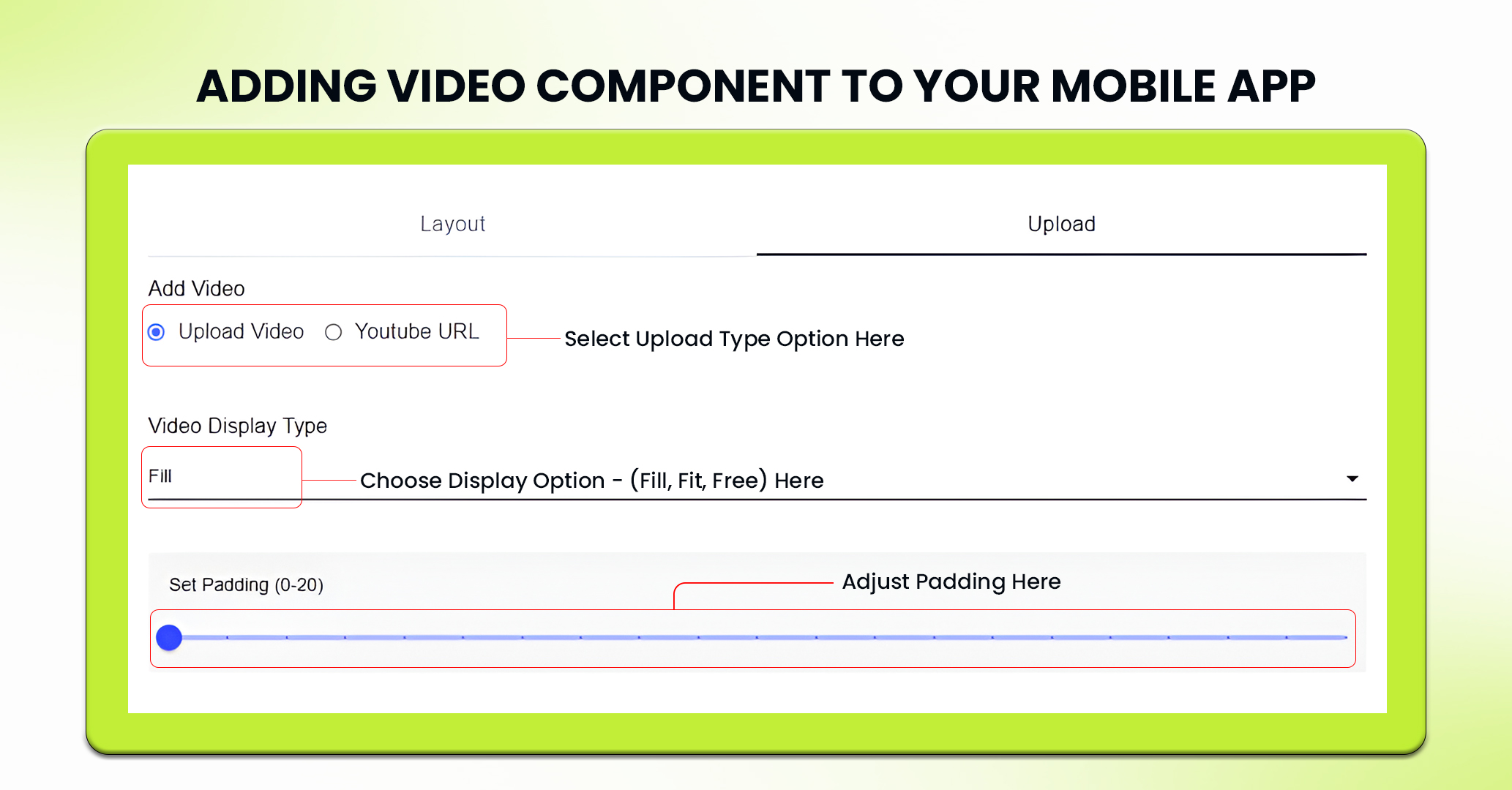
5. Next, Choose a display option of Fill, Fit, or Free Size based on how you would like the video to be displayed in your app.
6. Adjust the padding value to control the spacing around the video for better aesthetics.
7. Click on the “Add File” button under the upload video section to add your desired video file (maximum size of 5MB) or provide a Youtube Video link of the desired video.
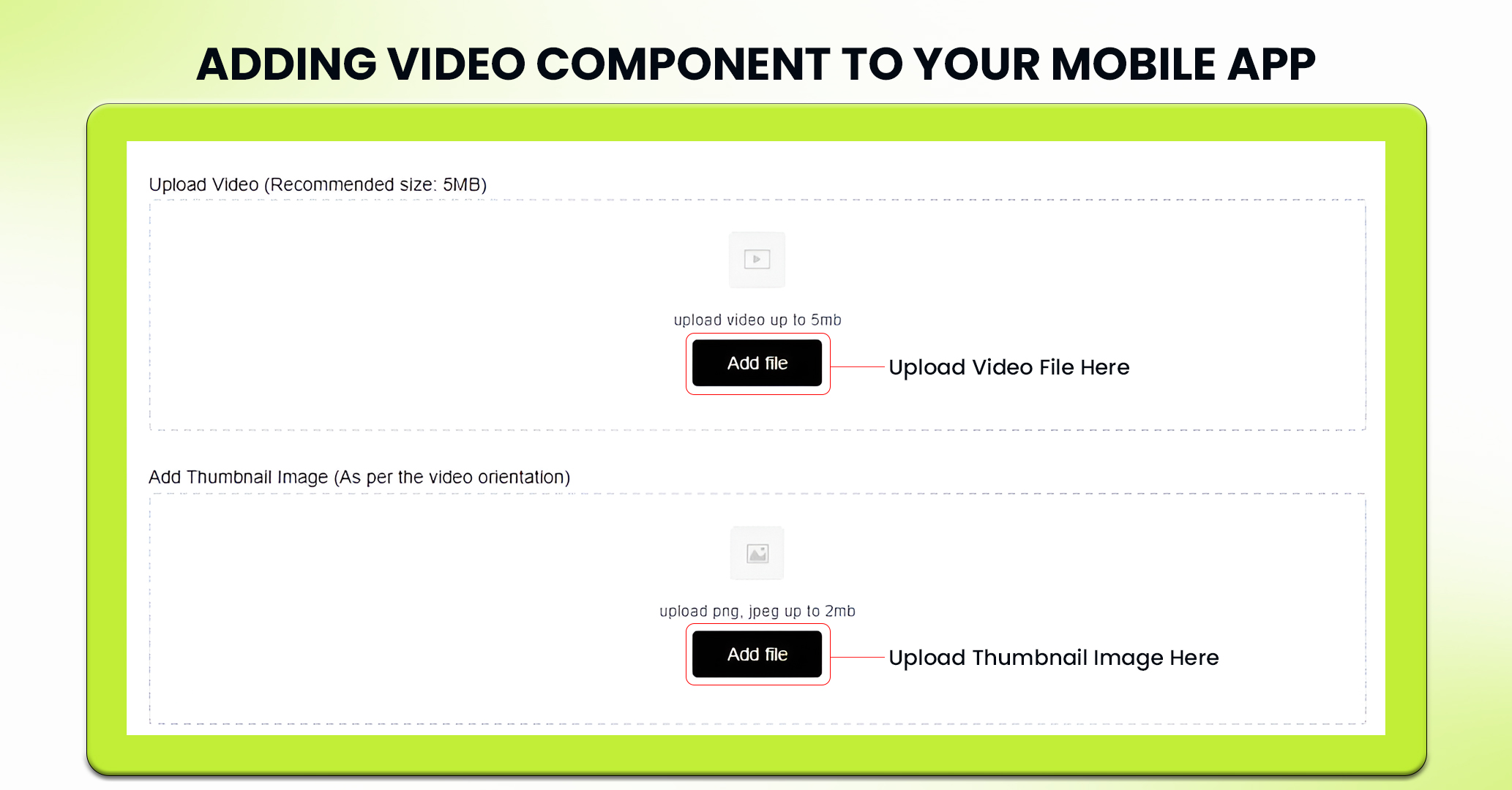
8. Click on the “Add File” button under the add thumbnail image to represent the video before it plays. The recommended size of thumbnail image is up to 2mb in jpeg or png format.
9. After all settings are configured, click on the Save button to apply the changes.
Use Cases for the Video Component
Promote New Arrivals Through Video Component
By integrating product demo videos into your app, you can provide a detailed look at what’s new, highlighting features and benefits that might otherwise go unnoticed.
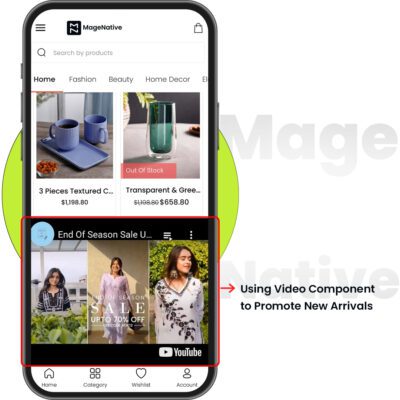
Scenario: You are launching a new collection and want to generate some buzz for it.
How to use: Place the Video Component on your homepage to feature a product demo video. Add a Banner Slider under the Video Component showcasing different product images or features.
Elevate your promotional campaigns by featuring video components
Setting a compelling video at the top of your homepage helps to raise users’ interest in your key promotion and makes it easier to engage with your storewide campaign.
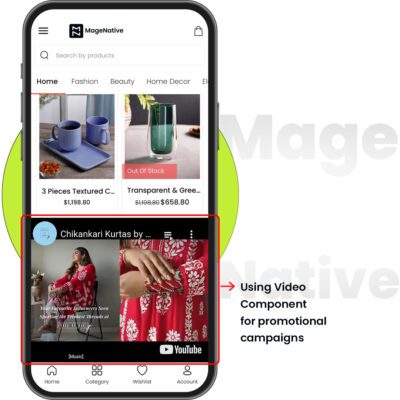
Scenario: Announcing a site-wide sale.
How to use: Place the Video Component at the very top of the homepage with a promotional video detailing the outline of the sale.
In this guide, we’ve explored how you can use MageNative’s Video Component to easily add videos to your app, making it more engaging and dynamic.
Feel free to reach out to our support team if you have questions or need support. We are here to help and address any issues you may have!


